
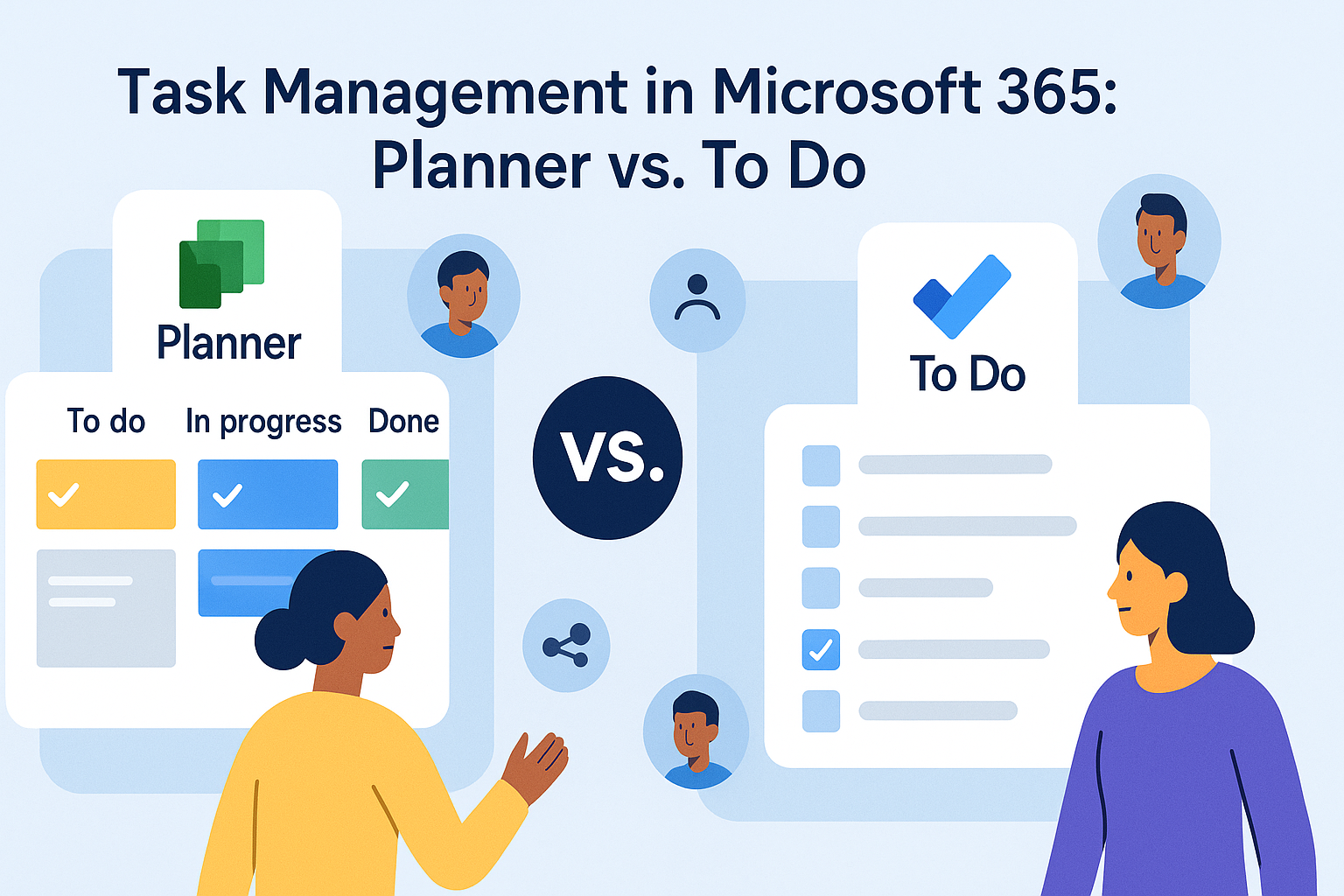
Using Microsoft 365 Tools Series: Task Management – Microsoft Planner vs. To Do
Click here to view/listen to our blogcast.
Effective task management is the backbone of a productive business. For small and medium-sized businesses (SMBs), keeping track of individual responsibilities and team deliverables can quickly become chaotic especially if you’re using email threads, sticky notes, or disconnected third-party tools.
Fortunately, if your business uses Microsoft 365, you already have access to two powerful task management tools: Microsoft Planner and Microsoft To Do. This post explains the difference between the two, how they work together, and how you can start using them to organize your work, improve accountability, and reduce missed deadlines without any extra cost.
🔍 What’s the Difference?
| Feature | Microsoft To Do | Microsoft Planner |
| Purpose | Personal task management | Team task/project management |
| View Style | Checklist format | Board view with buckets |
| Integration | Outlook, Loop, Teams | Teams, Loop, To Do |
| Best For | Daily personal tasks and reminders | Assigning, tracking, and organizing group work |
| Collaboration | Limited (mostly individual use) | Built for teams and shared progress |
| Included in M365? | ✅ Yes | ✅ Yes |
🧠 Think of It Like This:
- To Do = Your Personal Task List
You track your work, set reminders, and check off items for the day. - Planner = Your Team’s Task Board
Your team tracks project phases, task assignments, and deadlines collaboratively.
Even better? Tasks assigned to you in Planner automatically show up in your To Do app, giving you a single place to view everything you’re responsible for.
🛠️ Real-Life SMB Use Case
Let’s say your company is onboarding a new client:
- In Microsoft Planner, you create a new plan called “Client Onboarding.”
- Buckets include: “Kickoff Prep,” “Data Migration,” “Training,” and “Final Review.”
- You assign tasks to different team members with due dates and notes.
- Each team member sees their assigned tasks appear in Microsoft To Do, where they can track them alongside their personal work.
- During weekly meetings, you pull up the Planner board in Teams to review status updates.
No Trello boards. No sticky notes. No extra logins. Just one connected system.
✏️ How to Start Using Them Today
✅ For Microsoft To Do:
- Open the To Do app or go to todo.microsoft.com.
- Create a list (e.g., “Today’s Priorities” or “Follow-ups”).
- Add tasks and due dates.
- Flag emails in Outlook they’ll automatically appear in your To Do list.
✅ For Microsoft Planner:
- Open Microsoft Teams or go to tasks.office.com.
- Create a new Plan (project).
- Add Buckets for phases or categories.
- Add Tasks with due dates and assignees.
- Embed the Planner board into a Teams channel to collaborate visually.
🎥 Helpful YouTube Tutorials
- Microsoft Planner for Beginners
Simple guide for creating and managing task boards. - How Microsoft To Do Works with Outlook
Great overview for keeping personal productivity in sync. - Planner + To Do + Teams Integration Explained
Shows how these tools connect for a seamless workflow.
🔗 Integrated with Loop, Whiteboard, and More
Planner and To Do don’t live in a vacuum:
- Create a Loop task list and assign items via Planner.
- Add Whiteboard brainstorm outputs to a Planner board.
- View assigned tasks in To Do, Outlook, and Teams all automatically.
This is the power of staying within the Microsoft 365 ecosystem: fewer apps, less confusion, and a more efficient team.
Final Thoughts
Don’t waste money on third-party task tools if you’re already using Microsoft 365. Between Planner and To Do, your business has what it needs to manage individual work and group projects without extra subscriptions or training headaches.
Contact us today if you need help setting it all up.

📞 Contact us here: https://cdml.com/contact/
📚 Read more on our blog: https://cdml.com/blog – 2
📺 Listen to our blogcasts: https://www.youtube.com/@CDMLComputerServices